![stat-combo-color-horiz updated-1.png]](https://help.stat.io/hs-fs/hubfs/stat-combo-color-horiz%20updated-1.png?height=40&name=stat-combo-color-horiz%20updated-1.png)
Flowstation Navigation
Use the question mark at the top right hand side of your Flowstation view to get an interactive tutorial of the Flowstation. It is a great resource to orient you to Flowstations and the Stat system.
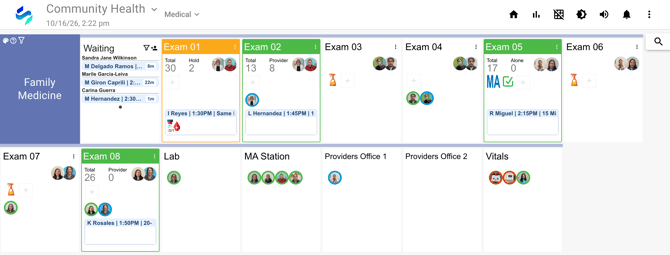
Your Flowstation view will look similar to the department that you belong to unless you create a custom view. This section will help you navigate features of a Flowstation.
-
The Flowstation displays various rooms grouped by department.
-
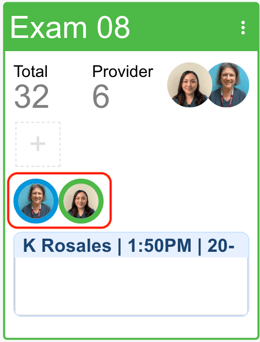
When rooms are highlighted in green it means a patient is in the room.
-
A room highlighted in yellow means a room is being held for a patient.
Staff usually apply a room status when entering the room with a patient by using the tablets. You may also change the status of a room from your Flowstation by clicking the room name to add/remove a patient, or clicking and holding to hold a room.
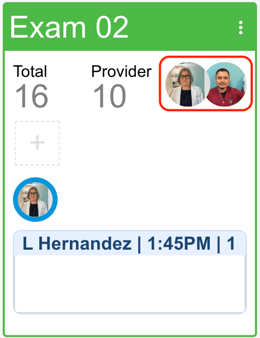
- Been with the provider
- Been with a staff
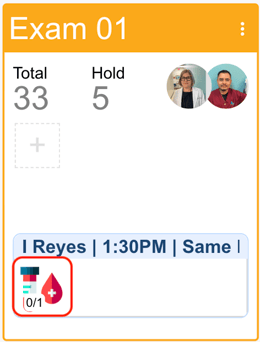
-
Blue: Provider
-
Green: Staff
-
Red: Equipment
-
A flashing battery (as shown on the MA above) indicates that a beacon battery is low and needs to be recharged at the end of the day.
Familiarize yourself with Actions by learning more and reading their definitions.
-
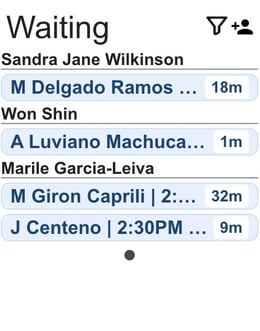
When an EHR integration exists users will see a Waiting Room card for each department. The waiting room will list all checked in patients grouped by provider. From the Flowstation users can hover of the patients name to view their patient ID. When list of patients is too long to fit on a single card the Waiting Room card will rotate to allow a view of all checked in patients.
Analytics
Use your Flowstation and Stat data in your morning huddles to keep department goals on the top of the minds of your care teams. Using the special keyboard choose the Analytics icon. A window appears and allows users to interact with the reports.
Report Cards
By default the Flowstation will display chart including total number of visits per and cycle times by provider. This Report Cards option toggles the Report Cards on and off from a Flowstation.
Dark Mode
Search
Having a hard time finding someone or something? Simply click on the magnifying glass at the top right of the screen and begin typing the name. Stat will tell you where the team member is or where they were last seen and how long ago they were there.
Example 1: Rather than seeing all rooms in a building, a MA may only want to see the rooms of the provider that she works with directly.
-
Click the search bar on the Flowstation screen.
-
Type the name of the team member you are searching for.
-
It will begin to generate a response with current location if team member is in a locating area of the clinic.
Equipment can also be assigned a Beacon. This can be useful for equipment that is utilized in different exam rooms. The picture of the equipment can be found on the Flowstation or through a search bar.
Custom Views
Creating your own Flowstation view
Flowstation Features
Filtering Waiting Rooms by Provider
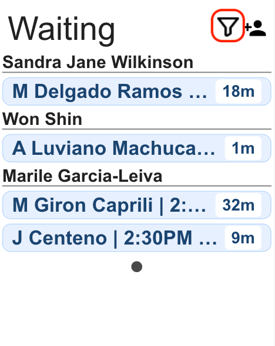
Department waiting rooms can be filtered by provider, which allows for custom Flowstation views to only show patients in the waiting room for a specific provider. To filter your waiting room:
-
Open your Flowstation view and click on the filter icon next to the add patient icon
-
A drop-down menu will appear with a list of all the providers. Select the provider you want to filter by.
-
Now that waiting room will only display Doctor Andrea's patients in the waiting room
These filters are linked to individual, custom views. That means changes you make to your own Flowstation view won't affect others' views.